
RECEIPTS · Attach
How to Attach a Receipt Photo to a Bill on Android
You have a purchase receipt in your gallery, a PDF invoice from email, or a warranty-linked bill with no file on it yet. The proof sits elsewhere while the bill entry stays empty. Here is how to attach one photo or PDF to that bill on Android.
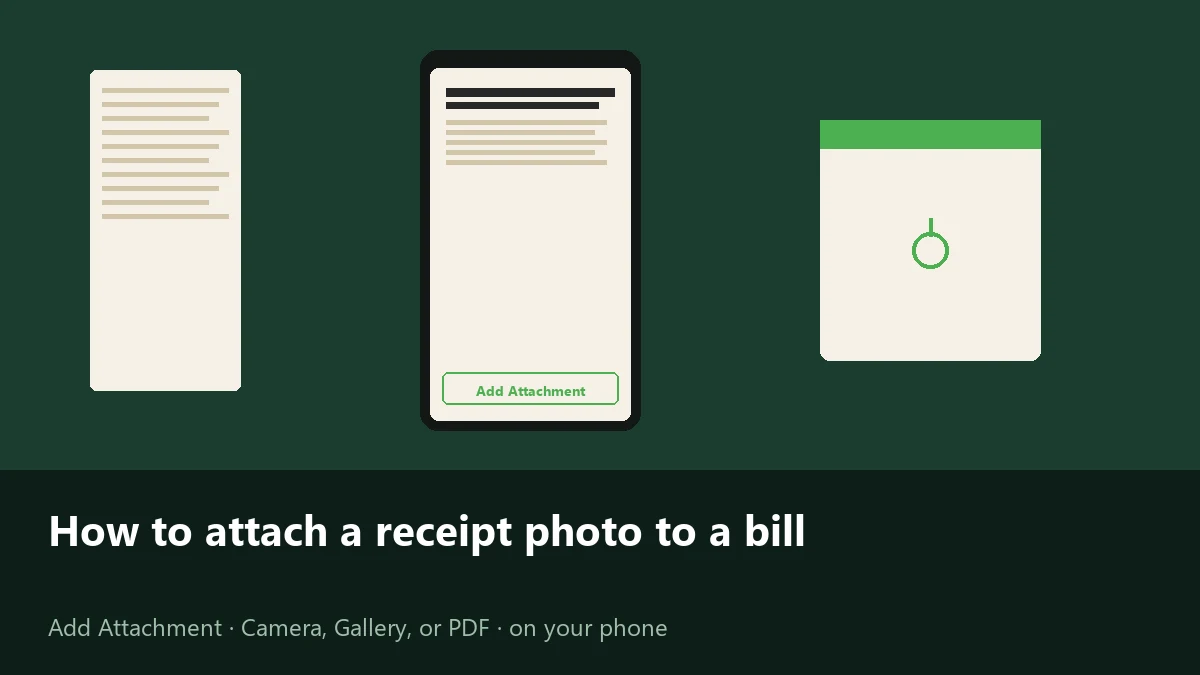
Attach a photo or PDF on the bill form
- Open Smart Bill Reminder and go to Bills.
- Tap New Bill or open an existing bill and choose Edit Bill.
- On the form, tap Add Attachment.
- Choose Camera, Gallery, or Add PDF.
- Tap Save.
Each bill holds one file. If you pick again, the new photo or PDF replaces the previous one. On View Bill, the attachment shows when a file is already linked.
Open from email or Files
If the receipt is already an image or PDF in email, Downloads, or a file app, you can start without picking it again inside the bill form.
- Open the photo or PDF in your mail app, Files, or Downloads.
- Use Share or Open with and choose Smart Bill Reminder.
- The app opens New Bill with that file already attached.
- Fill in the title, amount, and due date as needed, then tap Save.
This path starts a new bill with the attachment prefilled. It does not drop the file onto an existing bill by itself - to replace proof on a saved entry, open that bill and use Edit Bill → Add Attachment. Only image and PDF types are accepted; other apps and OEM share sheets can omit the app or fail to hand over the file.
Attach proof to the bill entry
What attach does and does not do
The file is copied into the app’s private storage on your phone and linked to that bill. Attaching works without Premium.
Attach does not read the receipt into title, amount, or due date. That OCR path is a separate daily-payment scan. Optional Google Drive backup stores bill details as JSON; it does not upload the photo or PDF file itself. Attaching a file does not schedule a bill or warranty reminder on its own.
Warranty proof on the same bill
If you track a warranty on a purchase, the receipt photo or PDF still lives on that bill’s attachment. There is no separate attach control on the Warranty Settings screen. Attach on Add Bill or Edit Bill for the same entry that holds the warranty period.
Warranty receipt checklist
After the file is on the bill, continue with tracking dates and reminders in the warranty receipt tracker how-to, or browse the warranty receipt use cases.
- Clear photo or PDF attached on the purchase bill.
- Purchase date and period set on the same bill when you need expiry reminders.
- Proof stays on the phone in app storage; Drive backup does not carry the binary.
Quick answers
Can I attach more than one file to a bill?
No. Each bill holds one photo or PDF. If you pick a new file, it replaces the previous attachment.
Can I attach a PDF instead of a photo?
Yes. On the bill form, tap Add Attachment, then Add PDF. Camera and Gallery are for photos; Add PDF opens the PDF picker.
Is attaching a receipt the same as OCR scan?
No. Attach keeps a photo or PDF on the bill entry. OCR is a separate flow that fills daily-payment fields from a scanned receipt.
Can I open a receipt from email straight into the app?
Yes, when the attachment is an image or PDF. Share or Open with Smart Bill Reminder opens New Bill with the file already attached. You still save the bill after you fill the fields you need.