
RECEIPTS · Daily payment
How to scan a receipt into a daily payment on Android
A receipt ends up in a drawer, or you retype every line by hand. Scan it once instead – the app reads the store name, date, total, and line items. Check the result, fix anything that looks off, and save it as a daily payment.
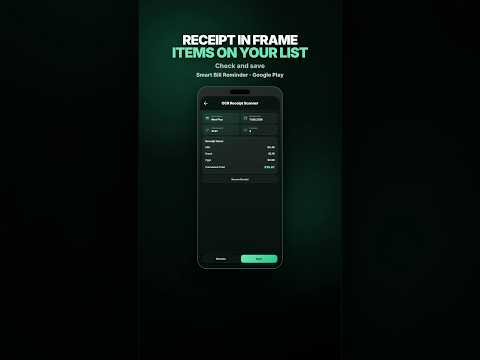
A daily payment in the app is a single spend from that day (groceries, fuel, small purchases) with line items from the receipt. If you want that spend on a list without typing every line by hand, an offline scan is the quicker way. Prefer an app that does not require an account? Normal OCR is processed on your device.
What the scan can read
From a clear photo, the app typically reads:
- Store name
- Date
- Total amount
- Line items (name and price)
Thermal paper, folds, and poor lighting can hurt the results. Treat the result as a draft: check the fields and fix any mistakes before you save.
Scan a receipt in four steps
- Open Smart Bill Reminder (no sign-up).
- Add a daily payment.
- Tap Scan receipt, frame the full receipt, and take a photo.
- Check the store, date, total, and line items. Edit if needed, then save.
Sharper scans
- Keep the phone parallel to the paper.
- Use even lighting; avoid hard glare on thermal print.
- Hold the phone steady while taking the photo.
- Fit the whole receipt in the frame, close enough to keep the text readable.
When the results look wrong
Edit the fields on the result screen first. If the scan is weak or the receipt is unusual, you can also tap Fix with AI (optional AI tools in Settings). This step uses the cloud, so AI must be enabled and you need an internet connection. Normal OCR still works offline without AI.
Why offline matters
A normal scan does not upload the photo to a server. The receipt is processed on the device, so OCR also works without an internet connection.
Receipt photo for warranty vs this scan
Scanning a receipt into a daily payment is not the same as keeping a receipt photo for warranty purposes. If you want to keep a purchase photo for a future claim, see track warranty with a receipt photo.
Three short answers
Does receipt scanning work offline?
Yes. A normal scan runs on your phone. You do not need to upload the photo for this step.
What does the scan fill in?
Usually the store, date, total, and line items. Always review the result before saving.
Is this the same as saving a warranty receipt photo?
No. For warranty purposes, you keep a receipt photo for a later claim. Here, the receipt becomes a daily payment with line items.
Also see: recurring bills for rent and installments · reminder before the due date.
Want to try it?
Scan a receipt into a daily payment
Related guide: Track warranty with a receipt photo.