
BILLS · Recurring
How to set recurring bills on Android (rent, installments)
Rent, internet, a phone installment - they come back every month. Add the bill once, save it as a series, and get reminded before each due date. No account. Data stays on your phone.
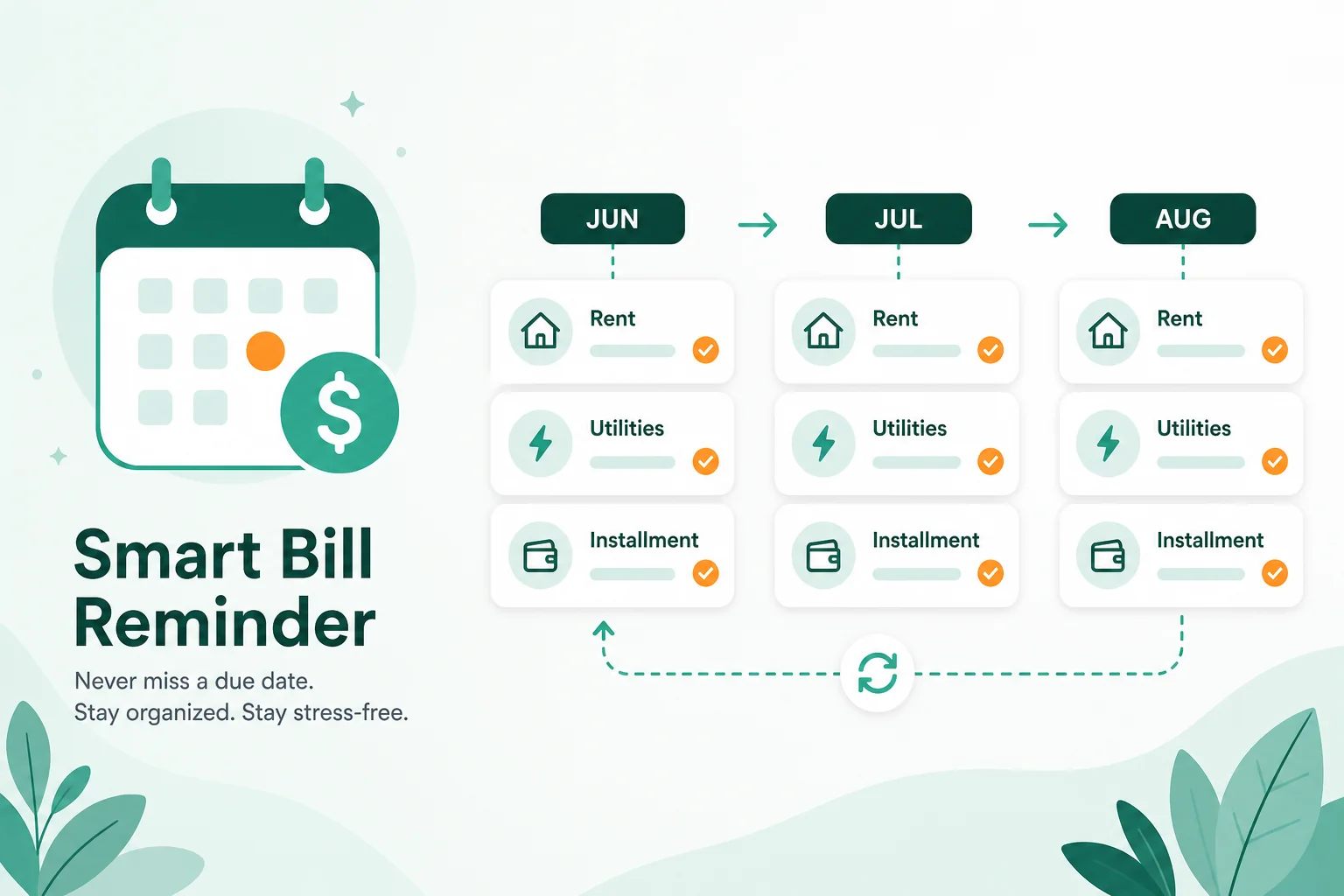
If you only track one-off payments, it is easy to forget the next rent payment. Recurring bills are different: you know the amount and the day, you just need the list to keep generating the next due dates. Looking for an app that works without creating an account? Smart Bill Reminder keeps the series on your device.
What belongs on a recurring list
- Rent or mortgage installment
- Utilities with a fixed due date (even if the amount moves a little)
- Phone or appliance installments
- Insurance paid monthly or yearly
Streaming and gym memberships are recurring too. For several services at once, use the subscription grid. This guide is for rent-style bills you add as a series from one New Bill.
Add the first bill once
- Open Smart Bill Reminder (no sign-up).
- Tap + → New Bill.
- Enter title (e.g. Rent), amount, category, and the next due date.
- Optional: attach a photo or PDF of the lease or payment confirmation.
Do not save a plain one-off if you need twelve months ahead. Use the series step next.
Save as series (+ Month)
In the bill flow, choose Save as series (Add a series of bills):
- Pick the step: + Week, + Month, or + Year.
- Set how many bills to generate.
- Check the preview dates.
- Create the series (e.g. generate twelve monthly rent bills).
You get separate bills on fixed intervals instead of retyping rent every month. You can undo right after creation, or delete the entire series later if plans change.
Reminders before each due date
In Settings, set a global yellow and red alert threshold (days before due). The same rule applies to every bill in the series, so you get a recurring bill reminder and monthly bill reminders on the schedule you chose. When the notification arrives: View, Edit, or Mark as Paid. Full walkthrough: bill reminder before the due date.
Marking paid stops alerts for that cycle. The next month's bill remains unpaid until you mark it as paid.
Recurring bills vs subscriptions
Rent and installments = New Bill + series. Many different memberships = subscription grid. Forgotten renewals = subscription audit without bank login. Same app, different entry points.
Three short answers
Do I need an account to set recurring bills?
No. Install, add a bill, save as a series. Data stays on your phone unless you turn on optional backup.
How do I create a monthly series for rent?
New Bill → title, amount, due date → Save as series → + Month → set count → preview → create.
Will I get reminded before each due date?
Yes. Global before-due settings apply to every bill in the series. Mark as Paid after you pay.
Also see: avoid late fees with before-due reminders · recurring expenses tracker template.
Also see: Android bill reminder: no account · single rent payment reminder · utility bill reminder (single bills) · installment payment reminder (single bills) · monthly bills checklist · bill reminder for tenants.