
REMINDERS · Utilities
How to set a utility bill reminder on Android
Electricity, gas, water, and internet each have a due date that is easy to miss. Add every utility bill as a normal bill with its due date, turn on Bill reminders, then mark the local entry paid after you pay the provider.
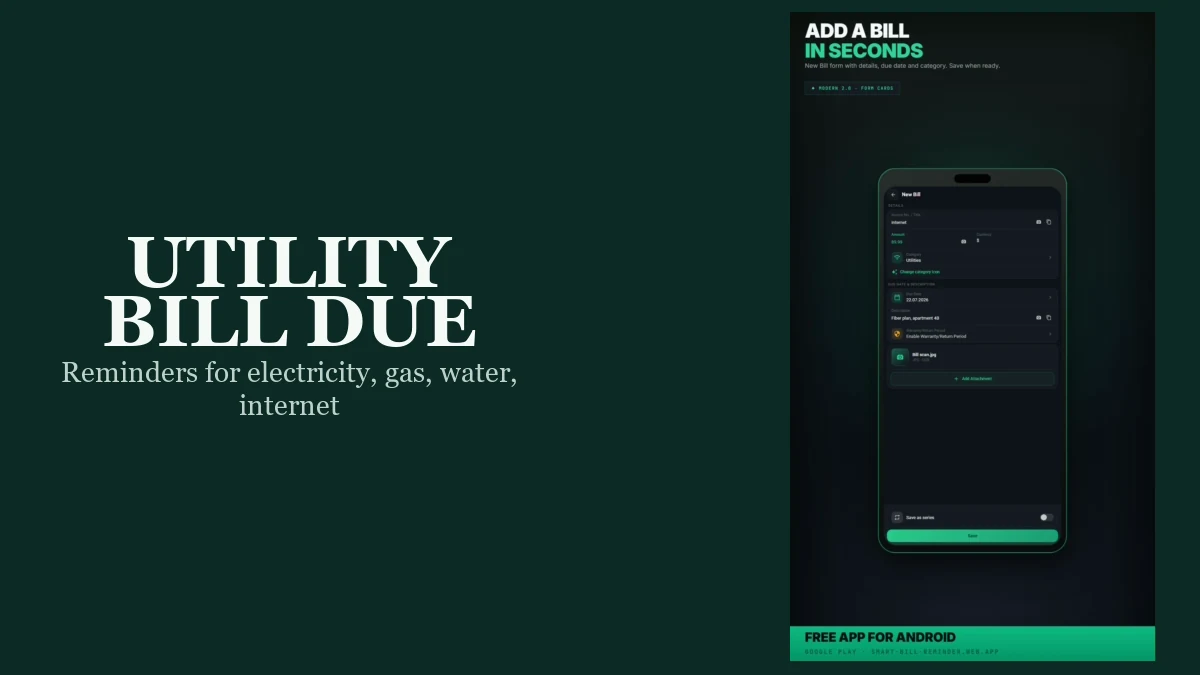
Add each utility or media bill as a normal bill with a due date, turn on Bill reminders, and mark paid after you pay the provider. There is no special Utility or Media mode. This is not a rent payment reminder setup, not a recurring series tutorial, and not the generic before-due reminder deep dive.
What counts as a utility bill here
Use ordinary bill names or typed category labels. For example: electricity, gas, water, or internet. When you want one shared category, Utilities works well. You type those labels yourself; the app does not offer a fixed four-item utility picker.
Add each utility bill and due date
Open Bills, choose Add bill, and fill the form. You can save each utility bill through the standard Add bill path, including several separate entries.
- Name the entry clearly, such as Electricity or Internet.
- Add the amount, type a category (for example Utilities), and select the due date.
- Save. The entry keeps its due date and paid or unpaid status in the app.
One unpaid entry per due date is enough for reminders. You do not need Save as series for this job.
Set utility bill reminders on Android
Turn on Bill reminders and one local time
Open Settings → Notifications. Keep Bill reminders on. Pick one shared local Reminder time for all unpaid bills. Set yellow and red warning days if you want a before-due window and a due-day path (defaults: yellow 3, red 0). This is one schedule for every unpaid bill, not a separate clock per utility.
Allow notification permission and know the timing limits
If Android asks for notification permission after you save a new bill, allow it so bill reminders can appear. A prompt may not show if permission was already handled. Alerts usually arrive around the selected local time. Android battery limits or WorkManager can delay them further, and there is no exact-time guarantee. If Smart Bill Reminder is open in the foreground at check time, the scheduled alert is deferred until later.
Turn on utility bill reminders
Mark paid after you pay the provider
First pay the utility through your bank, provider portal, or the method you use. Then mark the bill paid in Smart Bill Reminder. That updates the entry on your phone only. It does not send a payment, log into a supplier account, read a meter, or verify the bank. Paid entries are skipped by the reminder check. If a notification offers Mark as Paid, that action also changes the local status.
Optional utility bill due-date checklist
Before you close the app, a short list helps keep media bills covered:
- List each media bill you still need on the phone (electricity, gas, water, internet, and any others).
- Confirm every entry has a due date and stays unpaid until you pay for real.
- Confirm Bill reminders are on and one local reminder time is set.
Utility bill due-date checklist is a reader aid only. It is not a Premium feature and not a built-in Utility mode.
If you later want monthly generation with Save as series, see the recurring bills guide. That path is optional and not required for utility reminders.
Quick answers
Is there a special Utility mode for media bills?
No. Add each utility bill as a normal bill. Type a name and category, for example Utilities, or a label such as electricity, gas, water, or internet.
Why am I not getting utility bill reminders?
On current Android versions, allow notification permission for the app. In Settings, keep Bill reminders on, pick one local reminder time, and leave the entry unpaid. Alerts usually arrive around that time; Android can delay them.
Does Mark as paid send money to the utility provider?
No. Mark as paid updates the bill entry on your phone. It does not pay the provider, log into a supplier account, or verify a bank transfer.