
REMINDERS · Due-status colors
Yellow and red bill alert days on Android explained
Yellow and red due-status colors follow each unpaid bill’s due date. You set how many days count as yellow or red alerts in Settings. On the modern list, red means overdue, while yellow covers due today and bills inside your yellow window.
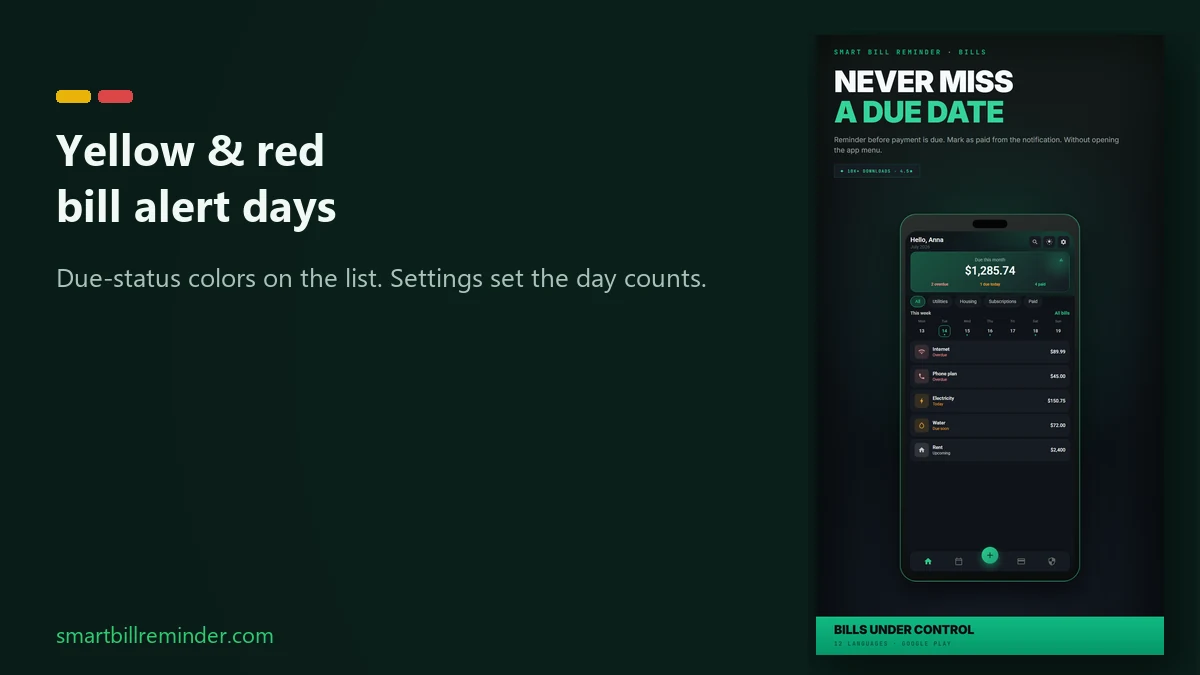
Yellow and red due-status colors follow each unpaid bill’s due date. You set how many days count as yellow or red alerts in Settings. On the modern Bills list, red marks overdue bills; yellow marks due today and bills inside your yellow day range. This is a color legend, not an overdue bill reminder setup, not the before-due reminder tutorial, and not the generic Android bill reminder hub.
What yellow and red mean on the modern list
Colors follow each unpaid bill’s due date automatically. You do not pick a color per bill.
- Red on the modern list and calendar marks Overdue bills (past the due date).
- Yellow marks Today and bills inside your yellow day range (Due soon on the calendar).
- Paid bills show the paid/green style after you mark them paid in the app.
- On the calendar, bills further out can show as Upcoming (blue) outside the yellow/red windows.
See due-status colors on Android
Set yellow and red day counts in Settings
Open Settings → Notifications. Set Days Before Yellow Alert and Days Before Red Alert. By default that’s 3 days for yellow and 0 for red. You can change both numbers (0 or higher). Keep Bill reminders on and pick one shared local Reminder time for all unpaid bills. You can see status colors and set these days without Premium.
Reminders use Settings days; list red is overdue only
Yellow and red days in Settings drive reminder checks. With Bill reminders on, unpaid bills in your red or yellow ranges can get a notification. The check looks at red first, then yellow, and skips paid entries. At the default red setting (0), due today is treated as a red alert for notifications.
On the modern home list and calendar, red is reserved for overdue. Due today stays yellow there. So list paint and notification ranges are related through the same Settings day counts, but they are not identical for “red.” Reminders differ by which alert range matched, not by a custom yellow/red notification color.
Understand yellow and red bill alerts
Home “this week” is not your yellow day setting
The home summary counts overdue, this week, and paid. Those buckets are separate from the yellow/red day settings. “This week” means unpaid bills whose due date falls in the Monday–Sunday week that contains today, not the yellow warning day count.
Notification permission and timing limits
On current Android versions, allow notification permission so bill reminders can appear. Alerts usually arrive around the selected local time. Android battery limits or WorkManager can delay them, and there is no exact-time guarantee. If Smart Bill Reminder is open in the foreground at check time, the scheduled alert is deferred until later.
Classic list (optional)
If you still use Classic view, list colors follow both yellow and red day helpers more like the reminder checks. Most readers on the modern home can ignore this aside.
Yellow and red day checklist
A short list before you leave Settings:
- Open Settings → Notifications and note your yellow and red day counts (defaults 3 / 0).
- Keep Bill reminders on and confirm one local reminder time.
- On the Bills list, confirm unpaid dues show status colors that match their due dates.
Yellow and red day checklist is a reader aid only. It is not a Premium feature and not a custom color picker.
Quick answers
Why is due today yellow on the list but a red reminder at the default?
On the modern list and calendar, due today stays yellow. With the default red setting of 0, the reminder check treats due today as a red alert. List paint and notification ranges are related, not identical.
Where do I change yellow and red day counts?
Open Settings → Notifications. Set Days Before Yellow Alert and Days Before Red Alert. Defaults are 3 for yellow and 0 for red. Keep Bill reminders on and pick one shared local reminder time.
Is home “this week” the same as yellow alert days?
No. The home summary counts overdue, this week, and paid. “This week” is the calendar week that contains today, not your yellow day setting. Status colors and day settings work without Premium.