
REMINDERS · Widget
How to add a bill reminder widget on Android
Rent, internet, an installment - the due dates are known. The annoying part is opening the app just to see what is unpaid this week. A home screen bill widget puts Upcoming bills on the Android home screen.
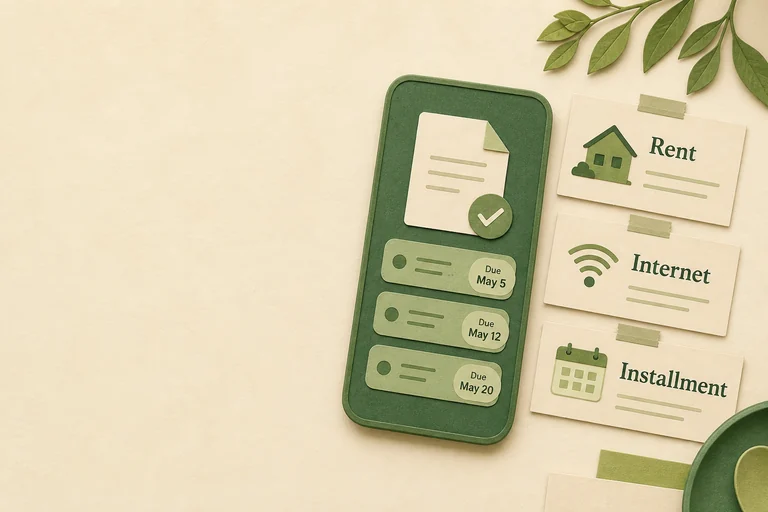
If you already track rent or a phone installment in Smart Bill Reminder, you still have to open the app to check the unpaid list. A bill reminder widget on Android is the glanceable version of that list. You add it from the system widget picker, not from a button inside the app. It does not require an account to start.
Add Upcoming bills from the widget picker
- Long-press an empty spot on the Android home screen.
- Open Widgets.
- Find Smart Bill Reminder.
- Drag Upcoming bills onto the home screen.
That is the whole pin path. There is no Settings row and no in-app pin prompt. There are two separate widgets: Upcoming bills for rent, internet, and installments, and Subscription countdown for upcoming renewals.
Free lock vs Premium unpaid list
Anyone can pin the widget. What you see next depends on Premium:
- Free - a lock message. Tap it to open Premium in the app.
- Premium - up to 10 unpaid bills, overdue first. Each row shows the title, a due label (Overdue, Today, Tomorrow, or a date), and the amount in the currency from Settings.
An OCR-only unlock does not show the unpaid list. Current purchase is Premium: a plan or a one-time buy in the app. Compare Free and Premium on the pricing page.
What you can tap on the widget
On the Premium list:
- + opens Add bill.
- A row opens that bill so you can edit it in the app.
- The header opens the bills list.
You cannot mark a bill paid from the widget. Open the bill, then mark it paid there. The widget also does not pay, snooze, or cancel anything.
Limits and refresh
The list is on-device. It shows unpaid bills you already saved. It does not log into a bank and it does not invent dues from email.
- Maximum 10 rows. Overdue unpaid bills sit at the top.
- Refresh after you add, edit, or mark a bill paid, and about every six hours. It is not a live minute clock, so a day label can lag until the next refresh.
- There is no due-count badge on the card.
- Daily payments you already marked paid do not appear.
If the list is empty on Premium, add at least one unpaid bill first. A reminder before the due date still lives in notifications. The widget is the home-screen view, not a notification.
A separate countdown widget
Subscription countdown is a second, separate widget. It shows the days to each next charge and puts the nearest one first. It needs at least two detected recurring-charge groups; tapping it opens the subscription audit. Read the Subscription countdown widget guide. Keep Upcoming bills if you want rent, internet, and installments on the home screen.
Three short answers
How do I add the Upcoming bills widget?
Long-press an empty spot on the Android home screen, open Widgets, find Smart Bill Reminder, and drag Upcoming bills onto the home screen. There is no add-widget button inside the app.
Why does the widget show a lock instead of bills?
Free can pin the widget. The unpaid list is a Premium feature. OCR-only does not unlock it. Buy Premium in the app as a plan or a one-time purchase.
Does the widget update every minute?
No. It refreshes when you add, edit, or mark a bill paid, and about every six hours. It is not a live ticking clock.
Also see: how to get a bill reminder before the due date · Android bill reminder without an account · avoid late fees with before-due reminders.
Put upcoming bills on the home screen Unlock the unpaid list with Premium