
SUBSCRIPTIONS · Identify before audit
How to Identify Recurring Charges on a Bank Statement
Streaming, gym, cloud, or “storage” fees show up on your bank or card statement - and it is not always clear which lines will hit again. Here is a manual way to spot recurring charges: merchant descriptors, amount patterns, and weekly / monthly / annual cadence. Confirm a shortlist, then turn confirmed charges into private renewal reminders if you want them.
Open your bank or card statement yourself
Open the bank app, card history, or PDF statement on your own device. Use roughly the last one to three months so monthly hits and at least one annual window can appear.
Smart Bill Reminder does not connect to your bank, import the statement, or ask for login credentials. The recognition work stays outside the app.
Rules that mark a charge as recurring
Treat a line as a recurring candidate when several signals line up - not when one vague word appears once.
- Merchant descriptor. Same brand, truncated name, processor label, or MID-style string across hits (for example a streaming or gym name that repeats with small spelling noise).
- Amount similarity. The same amount, or a close amount that fits the plan (price hikes and tax noise still count as similar).
- Cadence. Weekly, monthly, or annual spacing between matching hits.
- Repeat count. Prefer at least two matching hits in your window, or a clear recurring / subscription label on the line, before you lock it in.
One matching hit with no cadence and no label is not enough. Keep it on a watch list until a second hit or a clear label appears.
False positives: what looks recurring but is not
These lines often look “subscription-like” and still should stay off your confirmed shortlist until more proof shows up:
- One-off purchases and refunds that reuse a familiar merchant name.
- Variable utilities or usage bills where the amount swings hard each cycle.
- Split or partial payments that break the usual amount pattern.
- Trial charges that flip to a paid plan later - wait for the paid cadence before you confirm.
- Annual plans that appear only once in a short window - mark as possible annual, not as confirmed monthly.
When you are unsure, leave the line unconfirmed. Identification is not the same as a keep or cancel decision.
Turn confirmed charges into renewal reminders
Confirm a shortlist before you act
Write a short confirmed list before you add reminders or open an audit sheet. For each confirmed line note:
- Name you recognize (not only the raw descriptor).
- Typical amount.
- Usual day or cadence (weekly / monthly / annual).
Confirmed means ready for a private renewal reminder or a later on-device list. Unconfirmed stays off that list. This page does not tell you what to keep, cancel, or invest in.
Turn confirmed charges into private renewal reminders
After a line is confirmed, you can add it yourself in Smart Bill Reminder and turn on Bill reminders. The app does not read your statement, does not detect bank charges, and does not advise keep or cancel decisions.
- On Home, tap +.
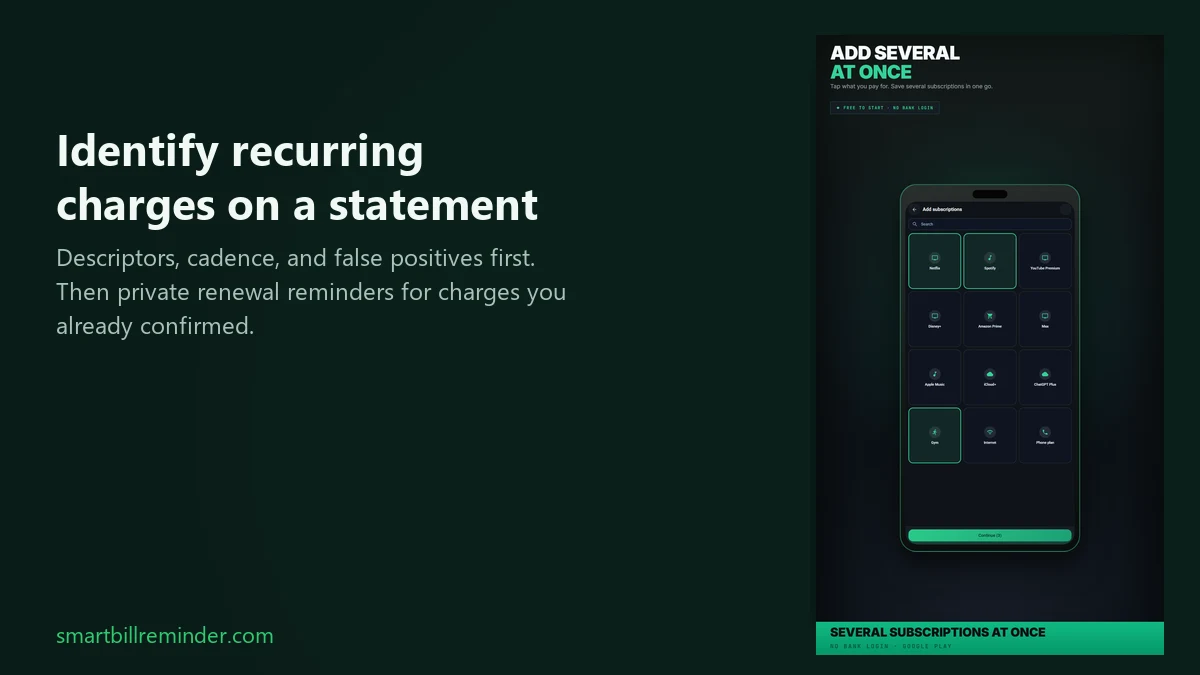
- Choose Add subscriptions for known services: pick from the catalog, set amount, day, and cycle, then confirm.
- Or choose New bill for one charge: title, amount, due or renewal date, then Save.
- Open Settings → Bill reminders so unpaid due dates can notify you (you set the yellow and red day ranges).
You do not need Save as series for this job. After confirmation, if you want the full on-device list and Recurring audit path, see how to check subscriptions on a bank card statement. For Keep / Cancel / Review decisions after you know which charges recur, open the subscription audit checklist.
Open the subscription audit checklist
Quick answers
How do I know a charge is recurring and not a one-off?
Look for a matching merchant descriptor, a similar amount, and a weekly, monthly, or annual cadence. Prefer at least two matching hits in your window, or a clear recurring label on the line, before you treat it as confirmed.
Does Smart Bill Reminder read my bank statement?
No. You review the statement yourself outside the app. Smart Bill Reminder does not connect to your bank, import statements, or auto-detect charges from the bank.
Should I cancel everything that looks recurring?
No financial advice here. Identify and confirm on this page. Use the subscription audit checklist for Keep / Cancel / Review decisions after you know which charges recur.
Turn confirmed charges into renewal reminders Forgotten subscriptions use cases