
SUBSCRIPTIONS · Bank card
How to Check Subscriptions on a Bank Card Statement
Streaming, a gym, cloud storage - the same names keep hitting the card. Open your bank or card statement yourself, mark the repeating charges, then build an on-device list on Android. Smart Bill Reminder does not connect to your bank or import the statement.
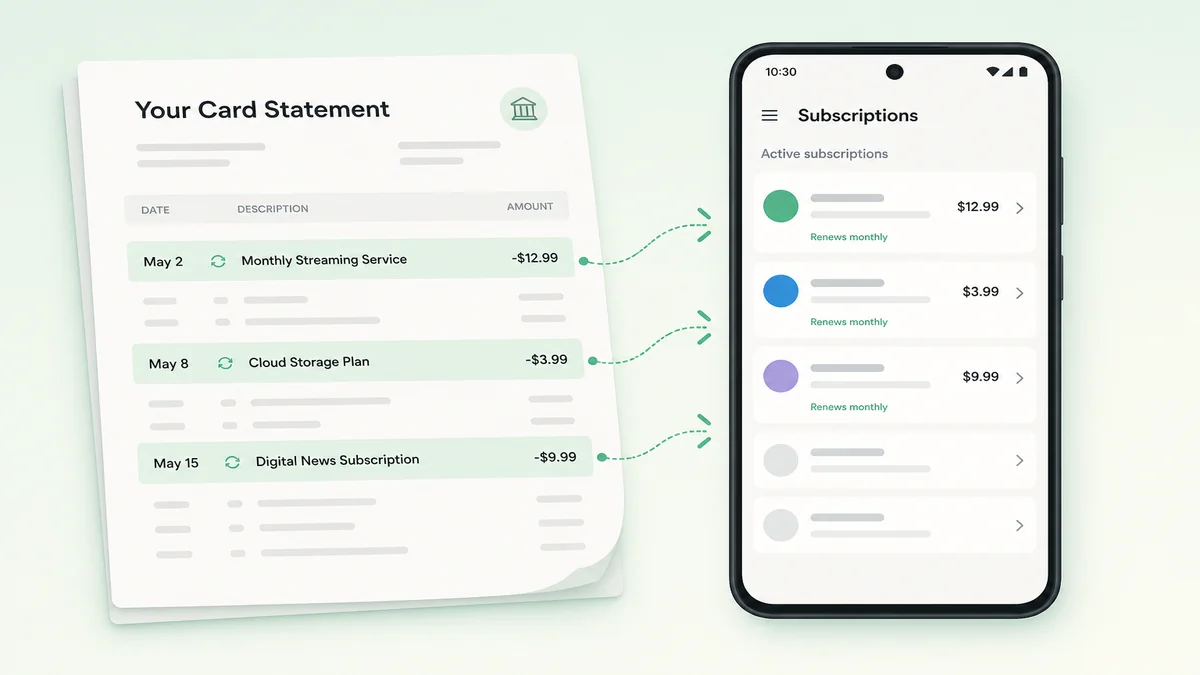
Scan your bank or card statement
Log into your bank app or open the card history outside Smart Bill Reminder. Look at the last one to three months so monthly and yearly hits both show up.
Write down merchant names and amounts as you go. The app never logs into the bank, scrapes a PDF or CSV, or auto-reads card charges for you. Checking subscriptions on a bank card starts with that homework.
If you only need the Google Play list, that is a different path: find subscriptions in Google Play.
Spot repeating charges
Mark lines that repeat on a recognizable cadence - same merchant, similar amount, about every week, month, or year. Streaming, gym, cloud, trials that flipped to paid, and small “storage” or “plus” fees are common.
One odd charge is not enough to treat as a subscription. Look for at least two matching hits, or a clear monthly label on the statement. Keep a short note of name, amount, and usual day of the month.
Build an on-device list
After you know what is charging the card, put each item into the app by hand:
- On Home, tap +.
- Choose Add bill for one charge: title, amount, due date, category, then Save. Free.
- Or choose Add subscriptions for several known services: pick from the catalog, set amount, day, and cycle, then confirm. That grid seeds paid history bills plus a recurrence rule on the device. Free.
There is no separate “Subscription” object. You save ordinary bills, optionally with a recurrence rule. Detection later only groups bills you already saved.
Build a list from statement charges
Save as series (optional, Premium to create)
On the Add bill form you can open Save as series to preview week, month, or year copies. Free users can browse the sheet. Creating the series needs a paid entitlement (Premium bulk add).
Use this when one statement line should become a run of future due dates. Skip it if Add subscriptions already covered the service.
Recurring audit after the list exists
Once bills are on the device, open Recurring audit from Settings, the Subscriptions tab, or the home teaser Recurring this month. The app groups similar saved bills when it sees enough matches (about two similar names, amounts within roughly 15%, and a cadence or an active recurrence rule).
On Free you get a teaser: provider name, a monthly-ish amount, and totals, plus Unlock with Premium. Cancel links, price-hike tools, hide/link, Mark paid, and cancellation reminders (1, 3, or 7 days before) stay locked until Premium.
Premium unlocks the full audit tools. The app still does not cancel for you; it can open a provider cancel page when a URL is known. Empty audit usually means you need more matching saved bills first.
For a broader forgotten-subscriptions overview (not this statement method), see forgotten subscriptions on Android and the forgotten subscriptions use cases hub.
Quick answers
Does the app connect to my bank?
No. You review the statement yourself. Smart Bill Reminder does not connect to banks, import statements, or auto-detect card charges.
Do I need Premium to add from a statement?
No. Add bill and Add subscriptions are free. Creating with Save as series needs Premium. Recurring audit shows a free preview; full tools need Premium.
Does the app cancel subscriptions for me?
No. Premium can open a provider cancel page when a link is known. You finish the cancel on their site.
Build a list from statement charges Subscription audit checklist Unlock full Recurring audit with Premium