
SUBSCRIPTIONS · Missing from Play
Subscription Not Showing in Google Play: What to Check
Streaming, cloud storage, or an app plan you expected on Google Play is missing from the list. Check the Google account and whether the charge is billed outside Play, then keep renewal dates you care about in one private list.
Confirm it is missing from the Play list
Open the Google Play Store app, tap your profile picture, then Payments & subscriptions, then Subscriptions (labels can vary by Play version). Look for the plan you expected. If the list looks empty or wrong, open the same list while signed in at play.google.com/store/account/subscriptions.
Need the full find path? See how to find subscriptions in Google Play. This page stays on one expected entry that is absent.
Google's own steps for finding missing subscriptions and switching accounts are in Fix subscription problems and manage Play subscriptions.
Check you are on the right Google account
Make sure you are signed in to the Google Account that has the subscription. In the Play app, open your profile, use the account picker (down arrow), and switch to the account that was billed.
If the plan lives on another email, family profile, or a second account on the phone, it will not show on this screen until you switch. A separate guide will cover full multi-account recovery; here one account check is enough.
Keep future renewal dates in one private list
Check direct billing and non-Play charges
If the account is correct and the entry is still missing, the charge may never have gone through Google Play billing. Common cases:
- plans started on the service website and billed by the merchant,
- carrier billing on your mobile bill,
- card charges that do not show a GOOGLE* statement name,
- app purchases made through alternative billing (those do not appear in the Play subscriptions center; Google says to contact the developer).
If the line is not in Play order history and the statement name does not look like a Google Play charge, treat it as a non-Play renewal. Next step for statement hunting: check subscriptions on a bank card.
Keep renewals you care about in one private list
After you know which renewals still matter, put them on your phone yourself. Smart Bill Reminder does not read Google Play subscriptions, does not import Play purchases, and does not cancel anything for you.
- On Home, tap +.
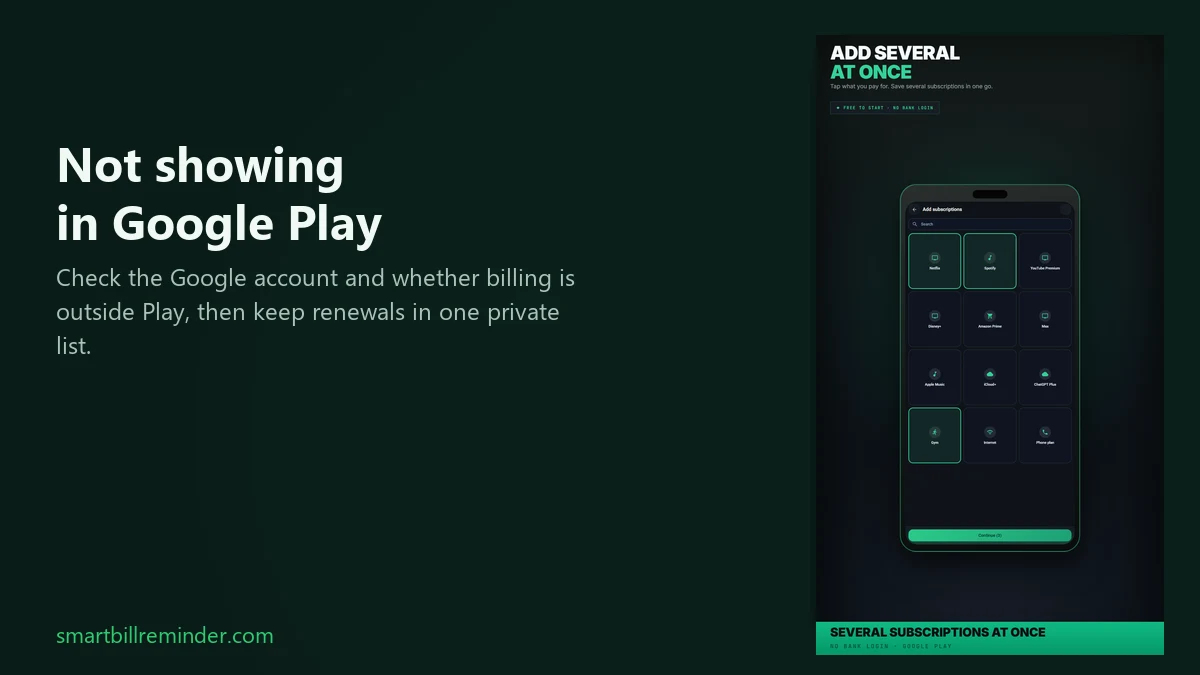
- Choose Add subscriptions for known services: pick from the catalog, set amount, day, and cycle, then confirm. That grid path is free.
- Or choose New bill for one next unpaid charge: title, amount, due date, then Save.
- Optional: open Settings → Bill reminders so unpaid due dates can notify you.
You do not need Save as series for this job. Series create needs a paid unlock. Detection later only groups bills you already saved; it does not mean “found on Google Play.”
Quick answers
Why is my subscription not showing in Google Play?
Often you are on the wrong Google account, or the plan was never billed through Google Play. Direct merchant, website, carrier, and some alternative-billing charges stay off that list. Play being “broken” is not the default explanation.
Does Smart Bill Reminder find my Play subscriptions for me?
No. The app does not read your Google Play list or auto-discover Play subscriptions. You add renewals you want to keep. It also does not cancel, pause, or refund subscriptions.
If it is not on Play, where else should I look?
Check the provider site, your card or bank statement, and carrier billing. For a statement method, see check subscriptions on a bank card.
Keep future renewal dates in one private list Forgotten subscriptions use cases