
SUBSCRIPTIONS · Another Google account
How to Check Subscriptions on Another Google Account
Streaming on a family tablet, an old work Gmail, or a second login on your phone can hide Play renewals. Check which Google account owns the purchase on the official Play path, then put every kept renewal in one private reminder list.
Why Play looks empty on the wrong Google account
Google Play shows subscriptions for the Google Account you are signed into right now. If the phone’s Play session is on a different account than the one that was billed, the list can look empty or wrong even when the plan is still active.
That mismatch is common with a family tablet, an old work email, or a second Gmail you used at checkout. Google’s Help also notes that the email you use inside an app can differ from the Google Account that was billed - check subscription receipts if you are unsure which account owns the charge.
This page stays on that account-mismatch job. For the general “where is the Play list” path after the account is already correct, see how to find subscriptions in Google Play.
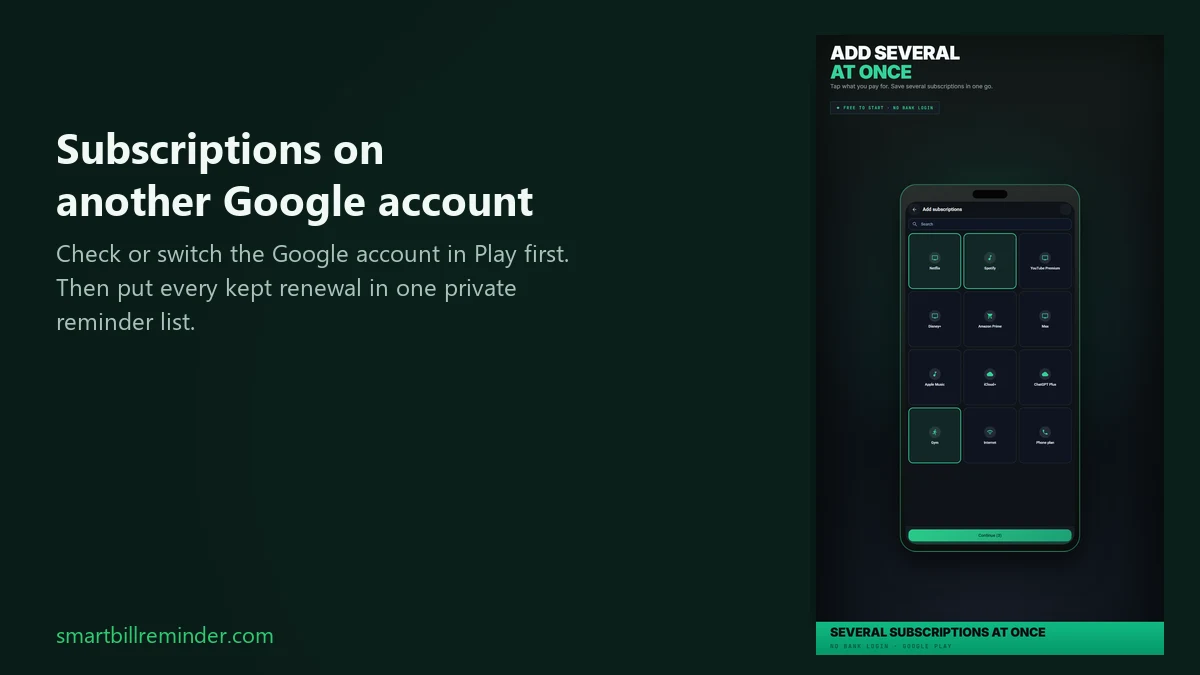
Check or switch the Google account in Play
Add the other Google Account on the device if it is not there yet:
- Open Android Settings.
- Tap Accounts (wording can vary by phone).
- Choose Add account, then Google, and sign in.
Then switch Play to that account:
- Open the Google Play Store app.
- Tap your profile picture or initial.
- Open the account picker (down arrow) and select the account that was billed.
On the web: open play.google.com, tap the profile icon, choose Switch account, and select the same account. Official steps: add and use accounts and fix subscription problems.
Google also says you may have subscribed with a family member’s Google Account. Switch to that account and check subscriptions there. That does not mean Family Library merges every household Play subscription into one list.
Open subscriptions for that account
With the correct account active in Play:
- Tap your profile picture or initial.
- Open Payments & subscriptions, then Subscriptions (labels can vary by Play version).
- Or open the same list while signed in at play.google.com/store/account/subscriptions.
Need a deeper walkthrough of opening the list once the account is correct? Use the Play subscriptions find guide. Google’s manage path: manage Play subscriptions.
Put every renewal in one reminder list
When the charge is still missing or not on Play
If you already switched to the account that should own the purchase and the entry is still absent, the problem may not be “wrong account” anymore. Next stop: subscription not showing in Google Play.
If the charge was never billed through Google Play, it will not appear on that list. Soft pointers only:
- PayPal automatic payments → find subscriptions charged through PayPal,
- card or bank statement lines → check subscriptions on a bank card.
Optional: Google’s Help also suggests checking Google Wallet for the subscription. Wallet is not a full replacement for the Play subscriptions list.
Put every renewal in one reminder list
After you know which Play renewals still matter, add them yourself on the phone. Smart Bill Reminder does not read your Google Play subscriptions list, does not switch Google or Play accounts for you, and does not import Play purchases.
- On Home, tap +.
- Choose Add subscriptions for known services: pick from the catalog, set amount, day, and cycle, then confirm. That grid path is free.
- Or choose New bill for one next unpaid charge: title, amount, due date, then Save.
- Optional: open Settings → Bill reminders so unpaid due dates can notify you.
You do not need Save as series for this job. Series create needs a paid unlock. Later detection only groups bills you already saved; it does not mean “found on Google Play.”
Quick answers
Does Smart Bill Reminder connect to my Google accounts?
No. You check Google Play yourself. The app does not connect to Google accounts, read Play subscriptions, import Play purchases, or switch accounts for you.
Why is my Play subscriptions list empty?
Often Play is signed into a different Google Account than the one that was billed. Switch accounts and re-open subscriptions. If the entry is still missing after the correct account, see subscription not showing in Google Play.
What if the charge is not from Google Play?
Then it will not appear on the Play subscriptions list. For PayPal, see find subscriptions charged through PayPal. For card lines, see check subscriptions on a bank card.
Put every renewal in one reminder list Forgotten subscriptions use cases