
SUBSCRIPTIONS · Renewal reminder
How to Set a Subscription Renewal Reminder on Android
Streaming, cloud storage, or a gym plan still renews on a fixed day. You want to know that charge day is coming, not cancel the service. Add the next renewal as a bill due date, turn on due-date bill reminders, then mark the entry paid after the real charge.
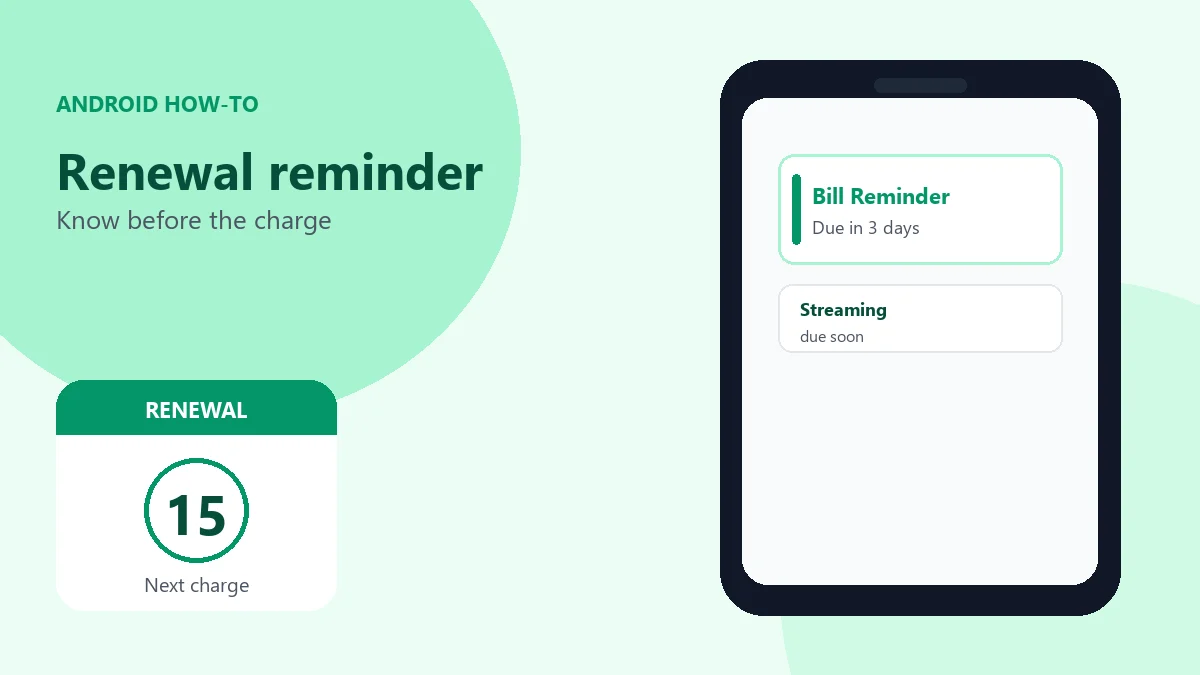
Add the next renewal day as a due date
There is no separate Subscription object. You save an ordinary bill and treat the due date as the next renewal or charge day.
- On Home, tap +, then New Bill.
- Enter the service name, amount, and category.
- Set the due date to the next renewal or charge day.
- Tap Save. Leave the bill unpaid so due-date reminders can fire.
Optional: Add subscriptions seeds known services with paid history plus a recurrence rule. The next unpaid cycle still needs an unpaid due date on your list (the scheduler can create upcoming unpaid bills when a rule is active).
You set the renewal date yourself. The app does not connect to your bank or auto-detect renewals from the card.
Turn on due-date bill reminders
Open Settings, enable bill reminders, then set how many days before due you want alerts:
- Days Before Yellow Alert (default 3)
- Days Before Red Alert (default 0, due today)
- One daily Reminder time for the whole app
When an unpaid bill’s due date enters that yellow or red window, the daily check can post Bill Reminder or Bill Due Today. These are Free due-date notifications for unpaid bills. They are not a separate per-subscription Free cadence, and they are not Cancellation reminder chips.
Android may ask for notification permission after you save a new bill. Allow notifications if you want the reminders to show. Delivery is not guaranteed at an exact clock minute; WorkManager and battery limits can shift it, often by about ten minutes.
Mark paid after the charge
After the real renewal charge goes through on your card or bank, mark that bill paid in the app. Paid bills are skipped by the due-date notification pass. A notification may also offer Mark as paid, which updates the local status only. The app does not pay the provider for you.
Recurring audit for next-billing visibility (optional)
After bills exist on the device, open Recurring audit from Settings, the Subscriptions area, or the home teaser. When detection thresholds are met, it can show next-billing timing for grouped repeating charges.
Free sees a teaser only. Premium unlocks the full audit tools and optional countdown awareness (including a Premium home-screen countdown widget that lists days until the next predicted billing). There is no separate “Subscription audit checklist” screen or PDF in the app.
If your job becomes cancel before the next charge, use the sibling guide to set a cancellation reminder before renewal. That path covers Cancellation reminder timing and cancel URLs. This article stays on renewal-date awareness.
Optional on Add Bill: Save as series can generate repeating bill entries. Free users can open the sheet; creating the series needs Premium.
Quick answers
Does this cancel the subscription for me?
No. This setup is for renewal-date awareness. The app does not cancel, pause, or pay for you. For cancel-before-renewal steps, see the cancellation reminder guide.
Do I need Premium for due-date reminders?
No. One unpaid bill with a due date plus Settings yellow and red bill reminders works on Free. Full Recurring audit tools need Premium.
Will the alert arrive at the exact minute?
No. You choose one daily reminder time. Android scheduling can delay delivery, often by about ten minutes.
Set a renewal reminder Unlock full Recurring audit with Premium