
SUBSCRIPTIONS · Uninstall ≠ cancel
Uninstalling an App Does Not Cancel a Subscription
You deleted a streaming, fitness, or cloud app and assumed the plan died with it. Uninstalling only removes the app. Billing can continue until you cancel with the provider. Here is how to open the right cancel path, verify the next charge, and set a private renewal reminder if you still need one.
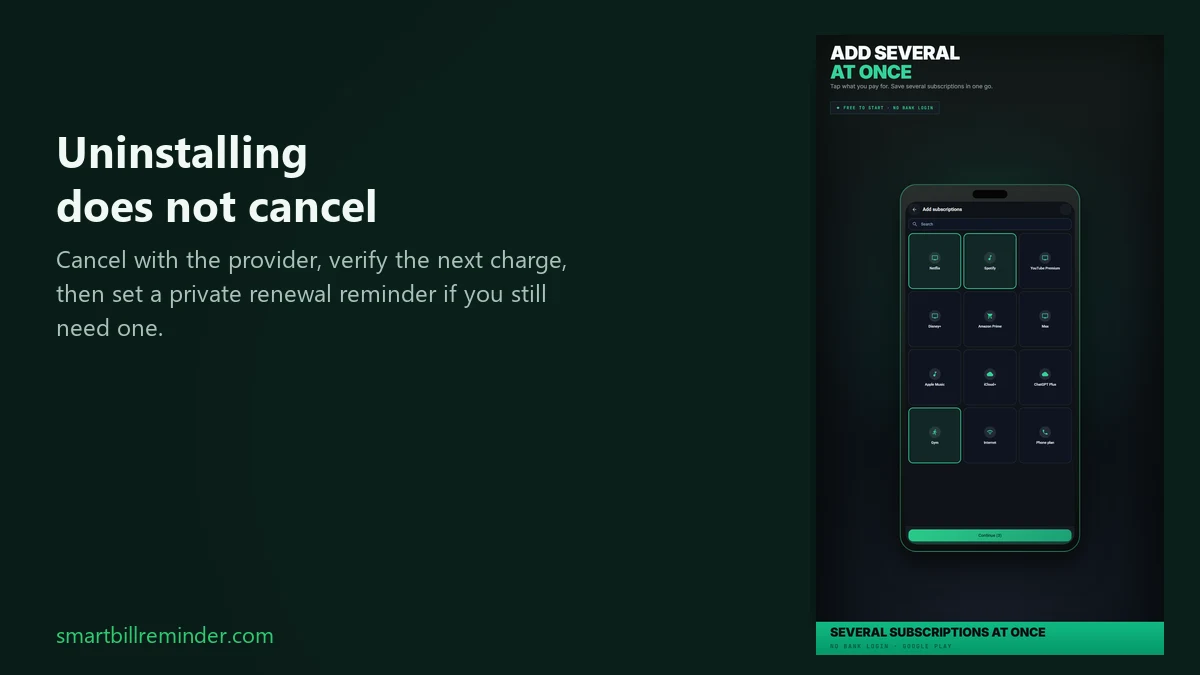
Uninstalling the app does not cancel the subscription
Uninstalling only removes the app. It does not cancel a Play subscription, and you may still be charged until you cancel in Google Play Subscriptions.
Google Play Help states the same rule: if you have uninstalled the app, you still need to cancel, or you will continue to be charged. Removing the icon from your phone is not the same as stopping billing.
Official wording: manage or cancel a Google Play subscription and fix subscription problems (including charges after uninstall).
Cancel in Google Play when Play billed you
If Google Play billed the plan, cancel there - even when the app is already gone.
- Open Google Play Subscriptions (often under Payments & subscriptions in the Play Store profile).
- Select the subscription.
- Tap Cancel subscription and follow the prompts.
Menu labels can vary by Play version. Use the same Google Account that was billed. Need the full open-list path? See how to find subscriptions in Google Play. If an expected Play entry is missing after uninstall, see subscription not showing in Google Play.
Set a reminder before the next renewal
Cancel with the provider when billing is outside Play
If you paid the service directly (website, app alternative billing, carrier), cancel or manage it with that provider - not by uninstalling, and often not in Play’s list.
Google notes that app subscriptions made through alternative billing systems do not show up in your Play subscriptions center; contact the developer. Direct merchant, website, and carrier plans stay off that list too. There is no single cancel screen for every service.
Verify status and the next charge date
Before you trust any private reminder, confirm cancellation status and/or the next renewal or charge date with the provider. Use the Play entry, a receipt, or the provider account - whichever matches how you were billed.
This page does not promise refunds, chargebacks, or automatic cancellation. If you need a refund path, use Google Play or the provider’s own support. The app does not handle refunds.
Set a private reminder after you verify
After you confirm the next date with the provider, add that charge in Smart Bill Reminder and turn on Bill reminders in Settings. Smart Bill Reminder does not cancel the service for you. It does not read Google Play’s subscription list. You add entries yourself.
- On Home, tap +.
- Choose Add subscriptions for known services: pick from the catalog, set amount, day, and cycle, then confirm. Add subscriptions from the grid without a paid unlock.
- Or choose New bill for one next unpaid charge: title, amount, due date, then Save.
- Open Settings → Bill reminders so unpaid due dates can notify you.
You do not need Save as series for this job. Series create needs a paid unlock. Mark paid only updates the entry on your phone; it does not stop merchant or Play billing. For a Keep / Cancel / Review worksheet after you know what to decide, use the subscription audit checklist. For a dedicated renewal-reminder how-to, see how to set a subscription renewal reminder on Android. If you want a cancellation reminder before renew, see how to set a cancellation reminder before renewal.
Quick answers
Does uninstalling an app cancel the subscription?
No. Uninstalling only removes the app. It does not cancel a Play subscription, and you may still be charged until you cancel in Google Play Subscriptions or with the provider if billing is outside Play.
Where do I cancel if I already deleted the app?
If Play billed you, open Google Play Subscriptions, select the plan, tap Cancel subscription, and follow the prompts. You do not need the app installed. If you paid directly, cancel on the provider site, account, or support. Open-list help: find subscriptions in Google Play.
Can Smart Bill Reminder cancel the subscription for me?
No. Smart Bill Reminder does not cancel the service for you and does not handle refunds. When a provider page is known, it can open that page. After you verify the next date, add the charge yourself and use Bill reminders in Settings.
Set a reminder before the next renewal Forgotten subscriptions use cases